
WhatsApp has officially ended support for Android 5.0 and 5.1 (aka Lollipop), meaning users running either version can no longer use the messaging app. The minimum supported version is now Android 6.0 Marshmallow, and the change applies to both WhatsApp Messenger and WhatsApp Business.
The Meta-owned messaging platform initially announced the change in April, giving affected users several months to prepare before support ended on September 8, 2026. Users on Android 5.0 or 5.1 were also shown an in-app notification informing them that WhatsApp would stop working on their device. The platform also advised users to update their operating system where possible or move to a newer device.
What Can Affected Users Do?
If your device is running Android 5.0 or 5.1, you can first check whether a newer Android version is available. Open Settings, look for System or Software Update, and check for an available update, although the exact steps may vary depending on the device manufacturer.
If your phone does not support Android 6.0 or newer, you will need to switch to a compatible device to continue using WhatsApp. Upgrading to a newer device is also recommended as this would also ensure continued compatibility and use with other applications, notably crucial ones such as for banking and so on.

How To Restore Your WhatsApp Chats
Switching to a new phone does not necessarily mean losing your existing WhatsApp conversations. If you have a recent backup, you can restore your chat history when setting up WhatsApp on a supported device.
To restore your chats:
- Make sure you have a recent WhatsApp backup available on your old device.
- Install WhatsApp on the new Android device.
- Open the app and verify your phone number.
- When prompted, tap Restore to retrieve your backed-up chats and media.
- Wait for the restoration process to finish before continuing with the setup.
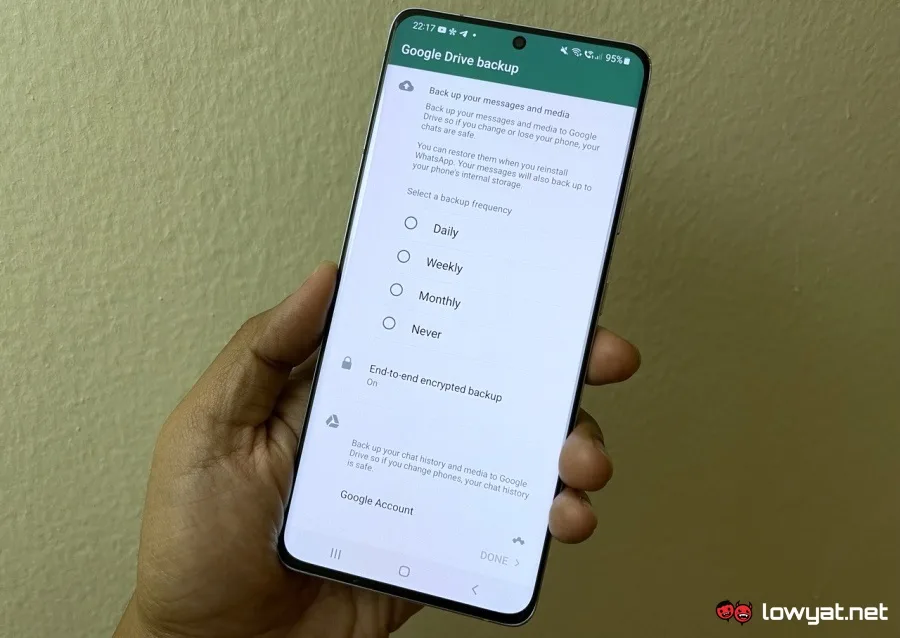
WhatsApp chat backups can be stored in your phone’s internal storage, while cloud backups may also be available depending on how you previously configured WhatsApp. You should use the same phone number and, where applicable, the same Google account associated with your backup when restoring your chat history.
(Source: WhatsApp [FAQ page])
