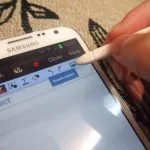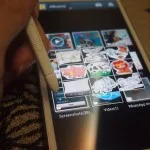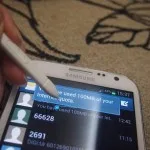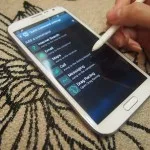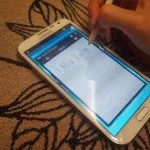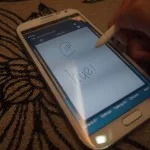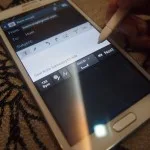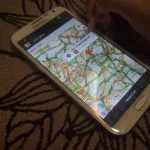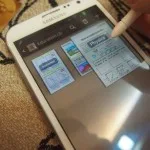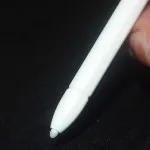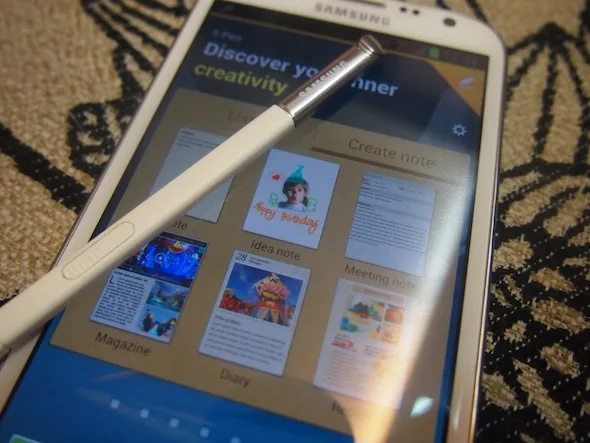
It’s no surprise that I’m a huge fan of the Samsung Galaxy Note II, in case you were wondering from the part 1 of our review, no I haven’t bought one yet though, it’s only a matter of time. What makes the Galaxy Note II superior to other Android devices including the Galaxy S III, is the S Pen and suite of apps from Samsung that is specially created for the stylus.
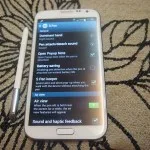
Pull out the S Pen from the phone and you’ll be greeted with a menu for the stylus, I have mine on default so it brings me to S Pen page where you can create notes and see your list of note. This feature can be changed in the settings menu so if you take lots of notes, you can have it programmed to opening a pop up note the second you remove the stylus from its cozy little slot. Very handy if you’re on the phone and you need to quickly jot down a number.
Find out more after the break.
Quick Command
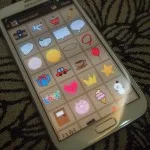
I’m not quite sure if Quick Command makes things faster but it is a handy option that allows you to make full use of the S Pen. Hold down the button and swipe upwards anywhere on the Note II and it’ll bring up the Quick Command page where you can where you can use different shortcut commands and have them perform a specific task. The default are “?” for internet search, “@” to conduct emails, “#” to make calls to someone and more, and if you wish, you can also create your own quick command, I’ve created one with the letter “D” to open up my Drag Racing game.
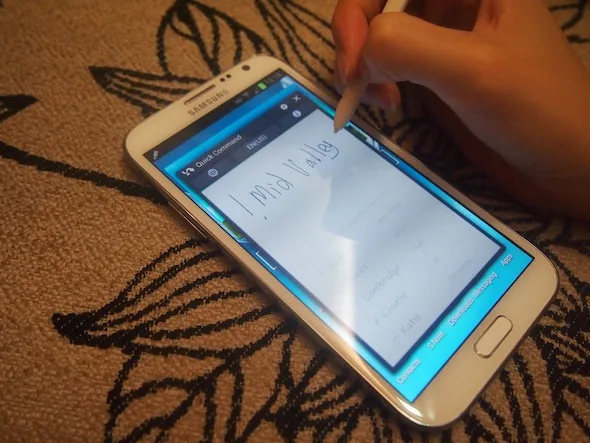
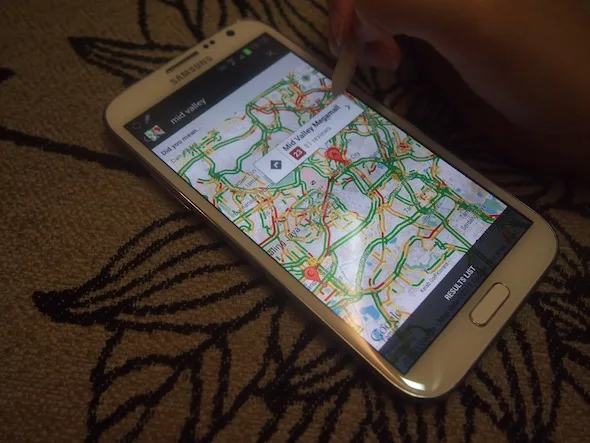
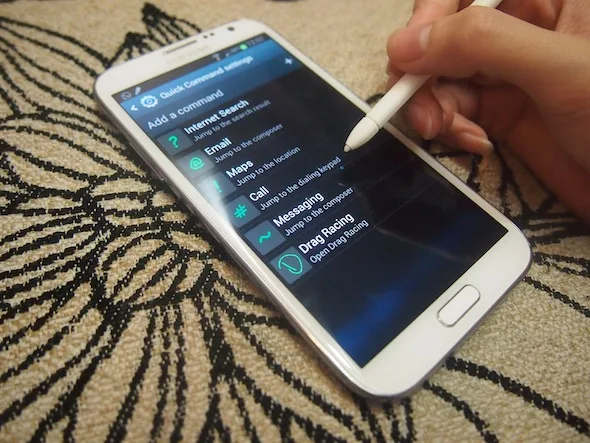
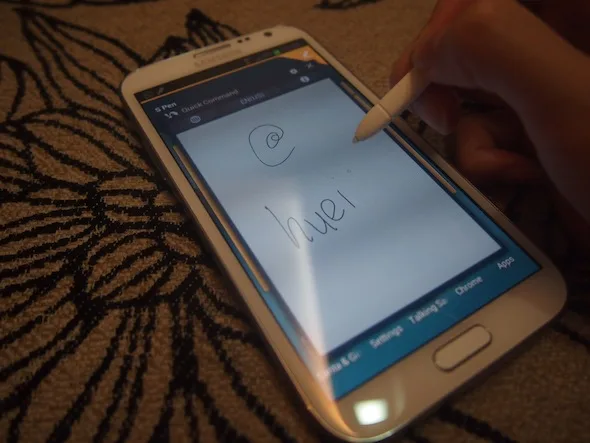
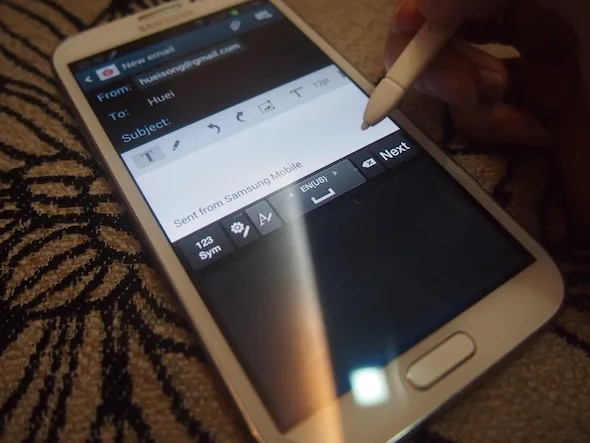
Quick Command is pretty accurate, draw an “@” followed by a name and you’ll be brought to the default Email app or draw “#” with a number and your dialer will have that number ready for you to press the call button.
S Note
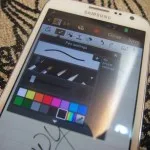
The S Note by far is one of the most handy application, especially the pop-up Note which can be activated by holding the button and tapping on the screen twice. When the Note pops up, you can quickly jot down anything you want and save it before continuing with what you were doing before like browsing the web or watching a video.
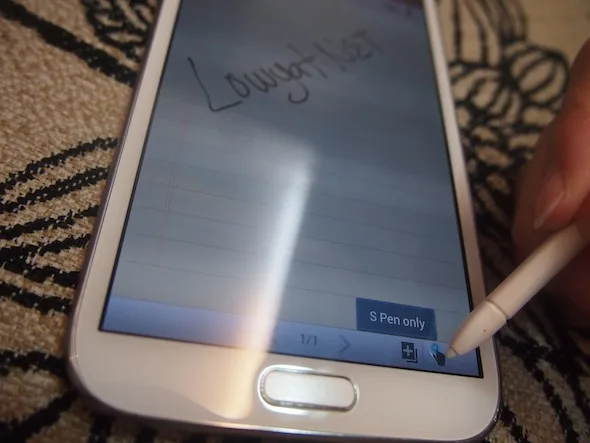
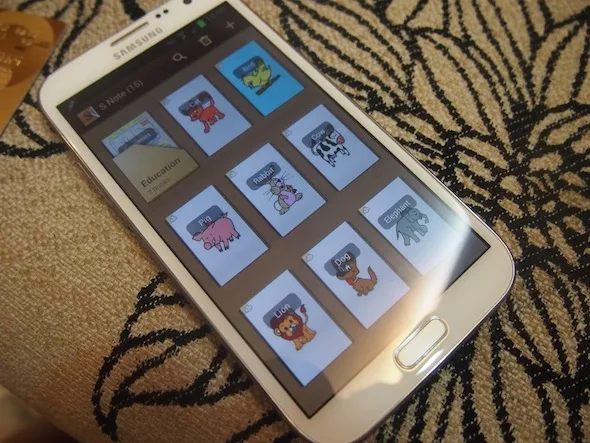
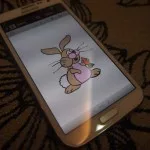
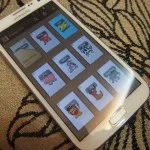
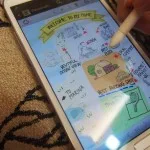
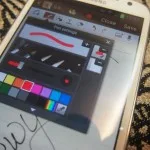
You can also create a number of notes like diary, idea sketch, recipe book using the templates given. To be honest I’m not one of those person so I haven’t created any of those notes; the only notes I’ve been creating are drawings of animals partly for my kid and partly because it’s so fun to use the S Pen.
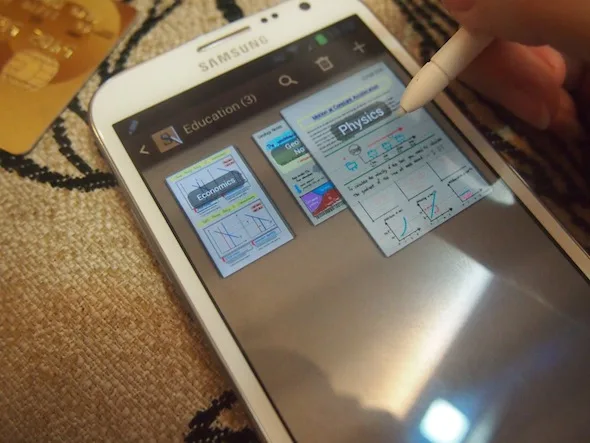
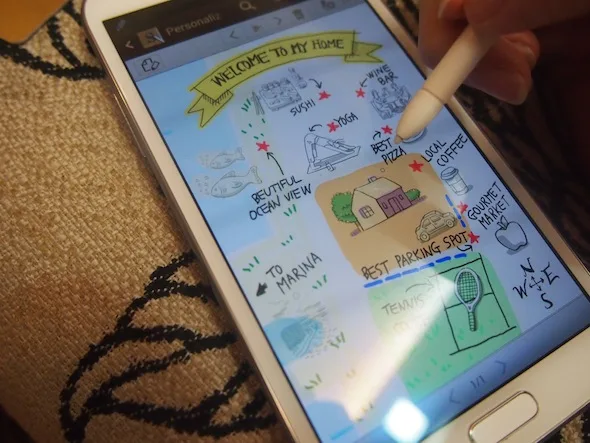
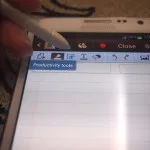
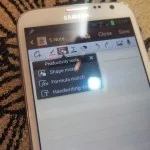
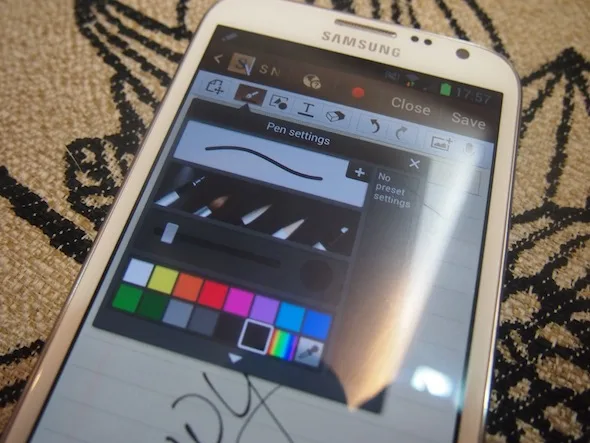
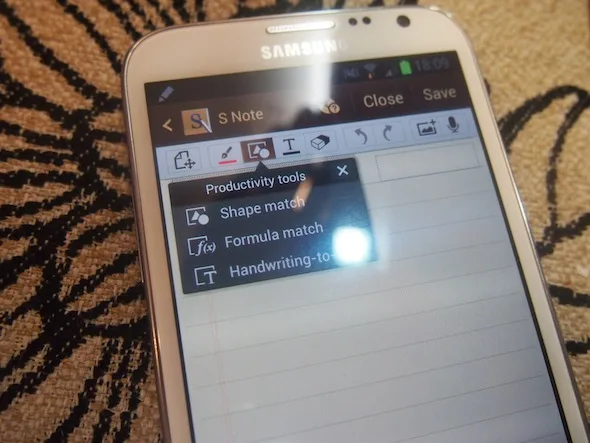
Unfortunately though, I find S Note slightly sluggish, especially when you’ve been working on something for quite some time. Tapping on the options like Drawing Mode, Productivity Tools and such takes some time to load (3 seconds delay maybe), annoying if you frequently toggle between different pens, colors and such. You can however, preset your most frequently used pen and color and toggle them using the button on the S Pen. Loading a new note or opening an existing one is slightly too slow for my liking as well as with using the highlighter at full size.
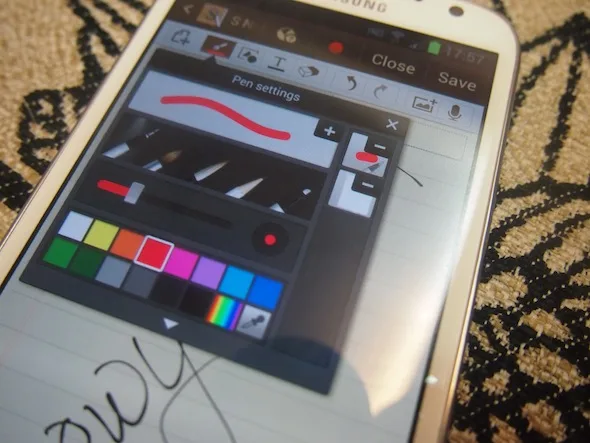
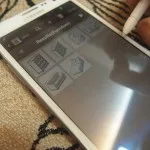
Another notable feature on the S Note is an idea sketch that allows you to quickly sketch out something.
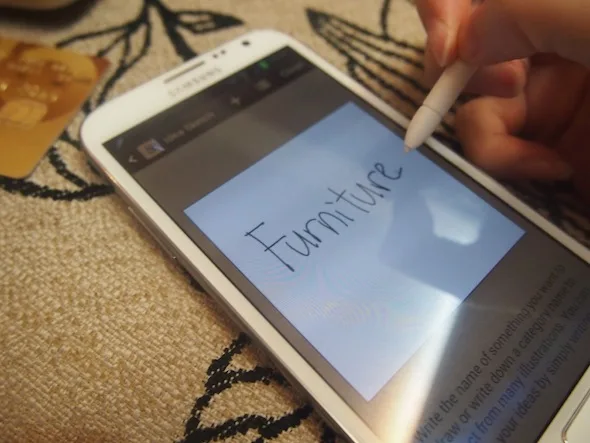
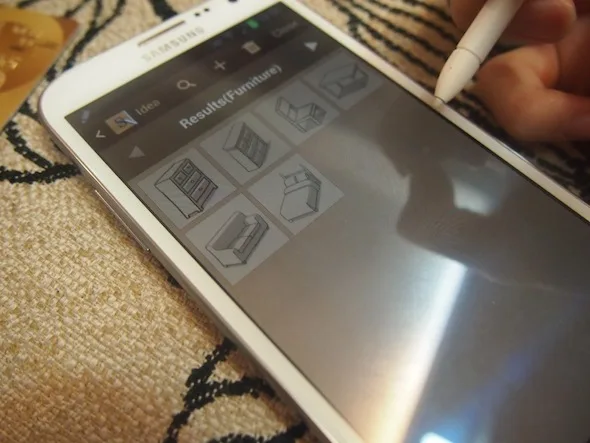
Air View
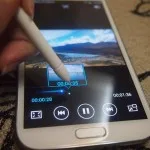
Hover the S Pen over a folder, an email, a message or a button and you can get a preview of what’s inside without having to go into it. You can also hover the timeline of a video and get a small preview of what’s ahead or scroll a document or a web page by just hovering on the edge.
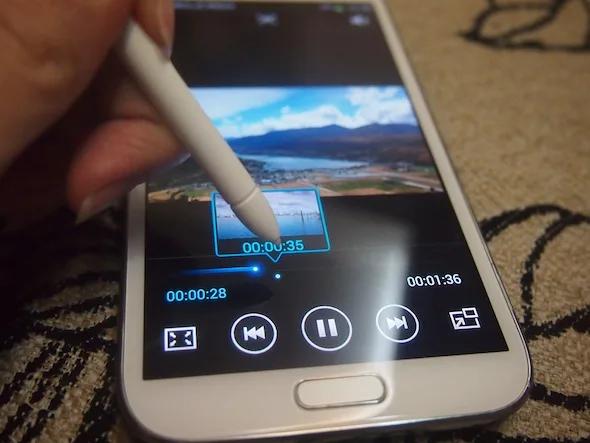
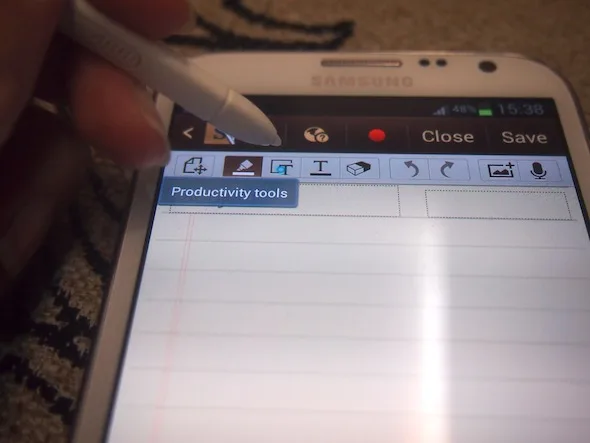
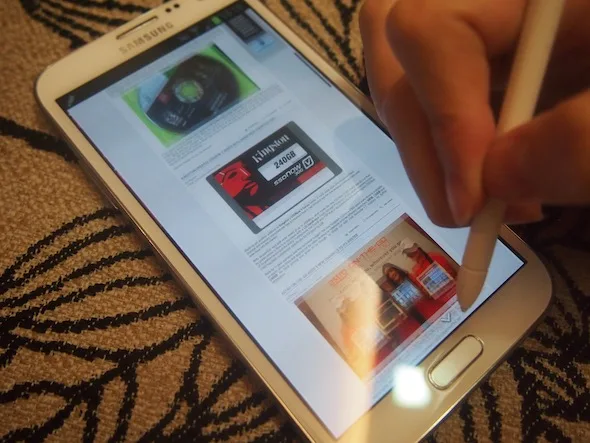
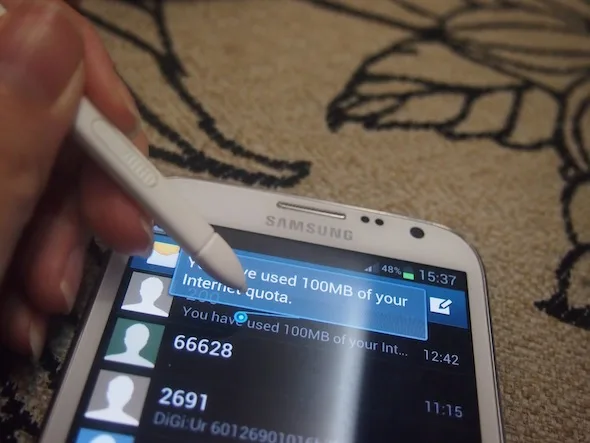
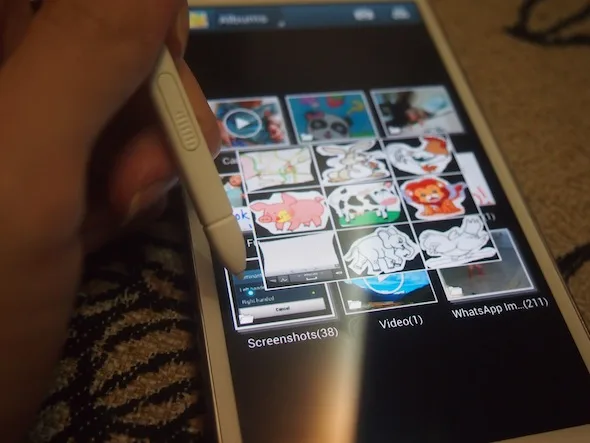
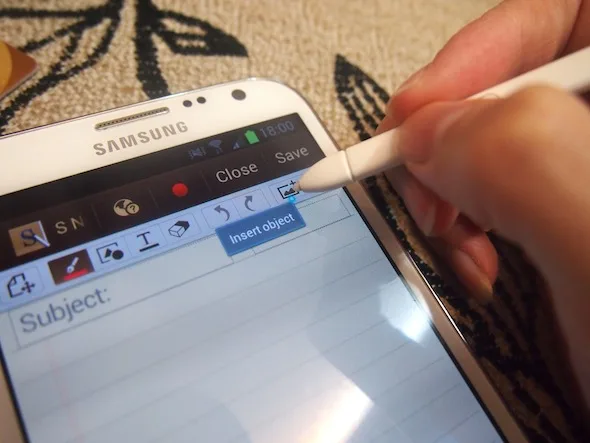
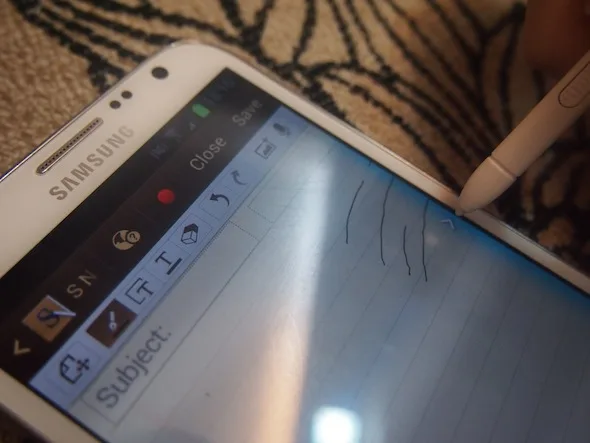
Unfortunately, because Air View is so responsive and quick, drawing all the way to the edge on an S Note can be rather annoying. Instead of registering my drawing, it detects when I lift up the S Pen slightly and scrolls instead.
Handwriting Recognition
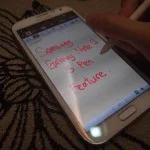
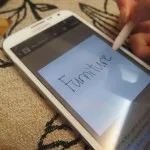
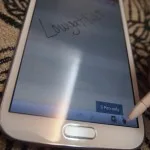
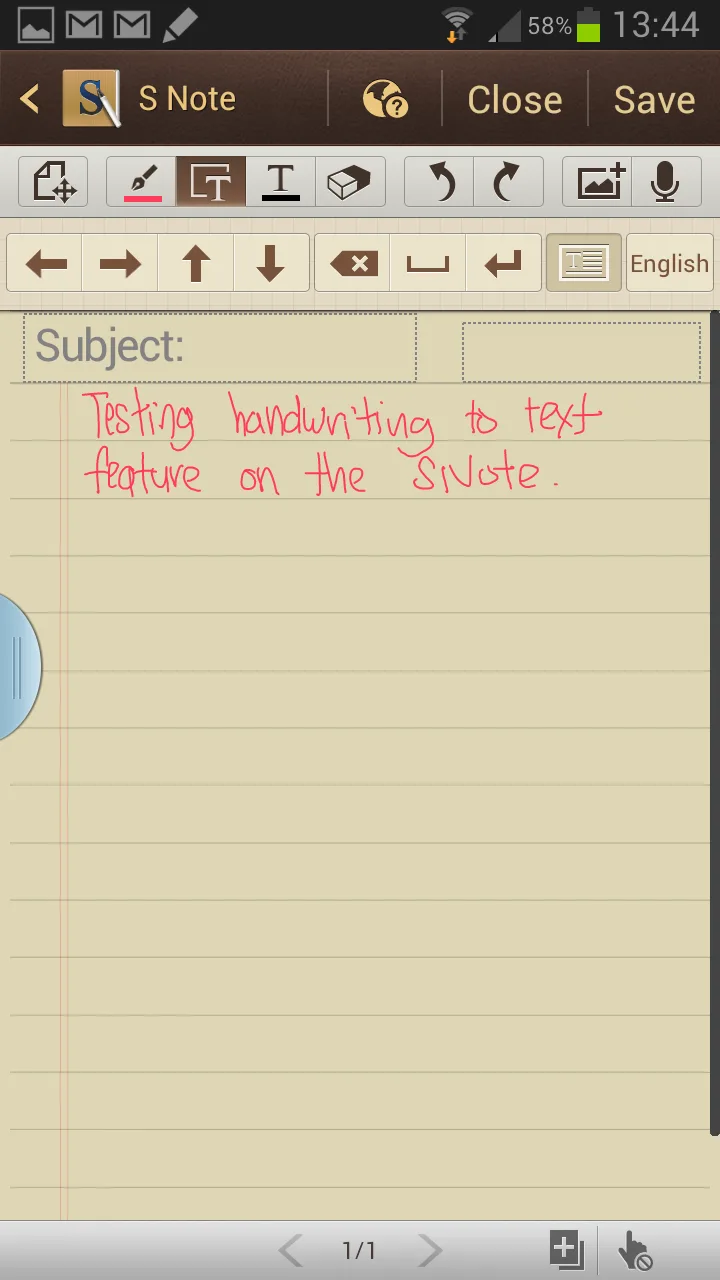
Handwriting recognition on the Note II is amazing, when the S Pen has been removed from its cradle, you’ll automatically be given a handwriting option for any input. On top of being able to recognize my messy handwriting (and according to the settings menu, it can recognize cursive handwriting as well) almost perfectly, it does so very quickly and for multiple lines as well as shown in the example below.
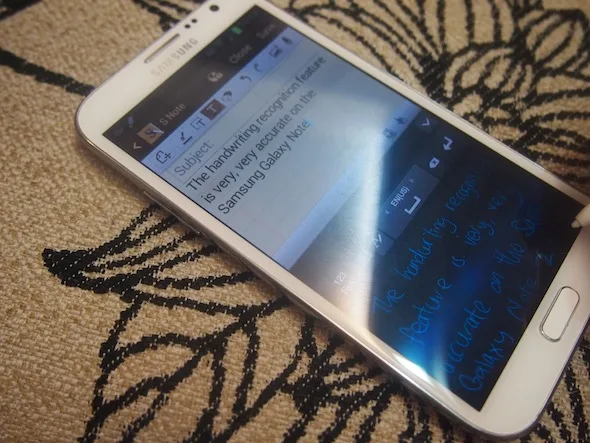
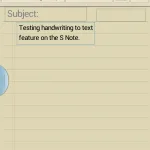
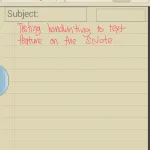
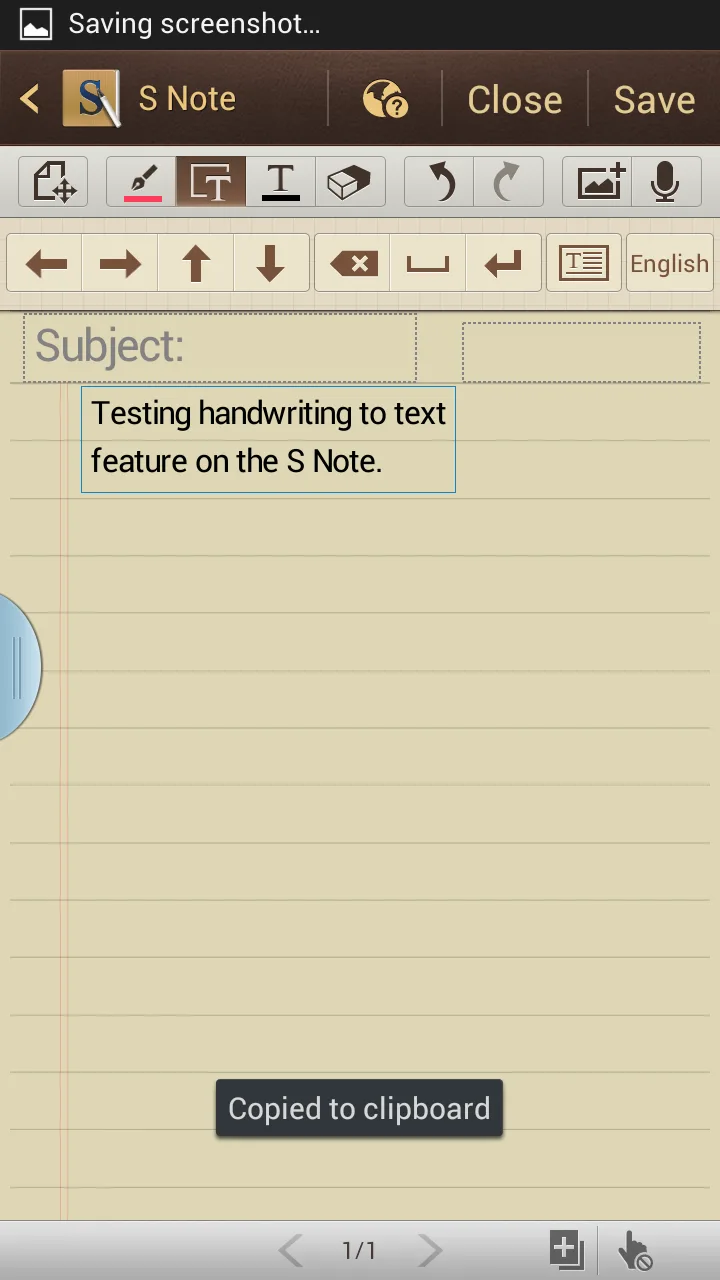
You can also use handwriting to text feature on S Note and have the device convert your handwriting to text directly on the note. I’m not a big fan of that option because it does not fit whatever I write onto the entire note, instead, it brings your text to a new line like how you write it.
Taking Screen Shot using S Pen
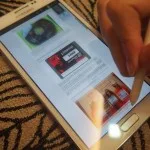
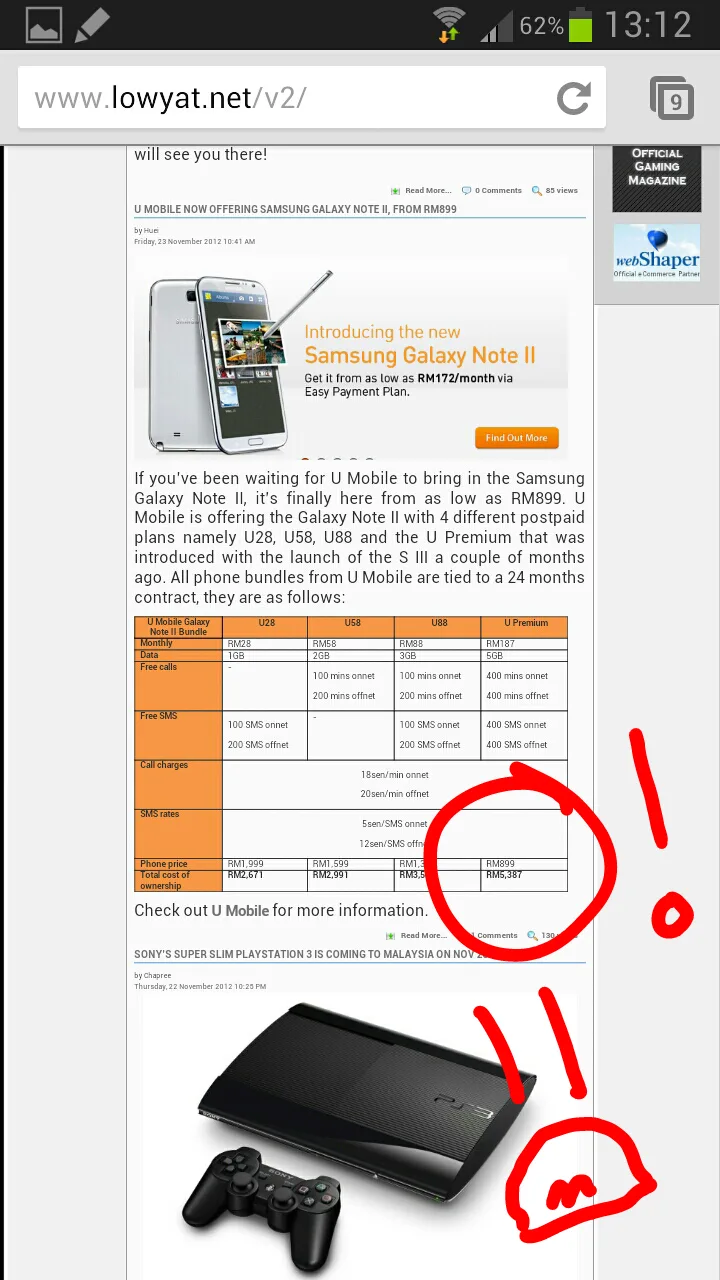
As you’ve seen in many demo before and even in part 1 of our Note II review, you can use the S Pen to make a selection on the Note II and save that into your clipboard or into a scrapbook in your S Note. Another way to do screenshot is to hold onto the button on the S Pen and touch the display and hold it there for about a second. You’ll then be brought to an editing page where you can jot down notes for the screen shot.
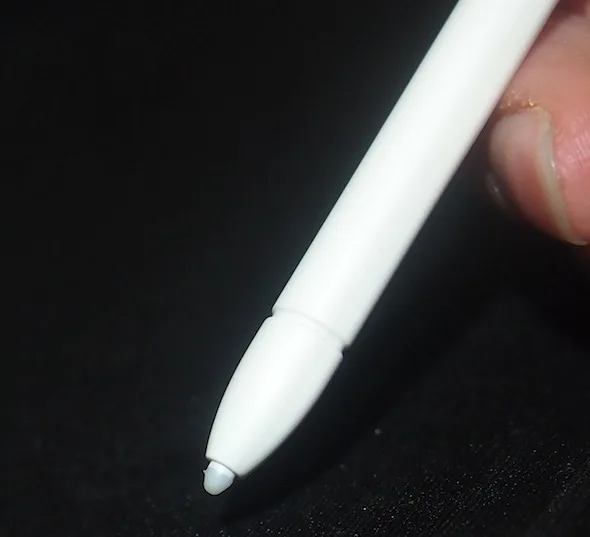
I love the S Pen compared to all the other stylus available out there mainly because of its very fine tip and how responsive it is. A fine tip allows you to draw very precisely, I’ve been drawing some animal pictures for my kid and I don’t think it’ll be possible to go into such details if it wasn’t for such a small tip. The only one problem with the S Pen is how you have to press onto the screen in order for it to register, it’s not something you have to do with great strength of course, it works perfectly fine if you’re outlining or writing, but you wouldn’t be able tilt the stylus to the side and shade like how you do so with a pencil.
Stay tuned for more features on the Galaxy Note II or if there are any specific things you would like us to test out, leave a comment.