

Google has announced a significant update to Gmail that introduces deeper integration with its Gemini artificial intelligence. The change reflects the company’s broader push to weave AI tools into its core services, with Gmail now gaining new features designed to summarise emails, prioritise messages, and assist with writing responses.
According to Google, the way people use email has changed significantly since Gmail launched in 2004. For now, the new Gemini features are only available to users in the US, with other regions planned in the coming months.

AI Overview
One of the headline additions is AI Overview, which functions similarly to AI Overviews in Google Search. Instead of showing a long chain of replies, Gmail now generates a summary explaining what the email thread is about and what has happened so far.
The feature displays the type of email, the main topic being discussed, and a condensed overview of the conversation. Google says this helps users avoid digging through lengthy back-and-forth exchanges, especially in work or group email threads. AI Overview summaries are rolling out to all users at no cost.
Ask Gemini
For users subscribed to Google AI Pro or Ultra, Gmail now allows direct interaction with Gemini using natural language queries. Instead of relying on keywords or filters, users can ask questions such as finding emails related to a specific trip, event, or topic from months or even years ago.
Gemini then surfaces the relevant emails almost instantly. Google positions this as a faster way to locate information buried in a crowded inbox, particularly for users who rely heavily on email for work or planning.
Help Me Write, Suggested Replies, and Proofread
Gmail is also expanding its AI-assisted writing tools, starting with Help Me Write. This feature automatically generates a draft reply based on the contents of an incoming email, aiming to reduce the time spent composing responses.
Suggested Replies builds on Gmail’s existing Smart Replies by offering more context-aware suggestions with a single click. Both Help Me Write and Suggested Replies are available to all users. Proofread, however, sits behind a paywall, as it automatically checks grammar and spelling and requires a Google AI Pro or Ultra subscription.
AI Inbox
Another major addition is AI Inbox, a new section that appears above the traditional Inbox in Gmail’s sidebar. Google describes it as a personalised briefing that highlights important messages, reminders, and tasks.
AI Inbox prioritises emails such as payment notices, meeting confirmations, and messages from frequent contacts. It also attempts to identify VIPs based on interaction history, contact lists, and inferred relationships from email content. This feature is still in testing and currently limited to select users, with broader availability expected later.
Google’s Privacy Claims Around Gemini in Gmail
Alongside the rollout, Google has attempted to address privacy concerns surrounding AI in email. The company says it will not train its AI models on users’ emails, despite Gemini having access to inbox content to generate summaries and suggestions.
Google also confirmed that users can disable Gemini-powered features entirely. Speaking of which…

How to Turn Off Gemini in Gmail
While the Gemini infused features are yet to roll out in Malaysia, you can disable its access to Gmail. It is worth noting that this process also allows users to limit Gemini’s access across other Google Workspace services.
On Desktop:
- Open Gmail in a web browser and click the settings icon in the top-right corner.
- Select “See all settings”, then untick the option labelled “Turn on smart features.”
- To fully disable Gemini across Workspace, click “Manage Workspace smart feature settings,” toggle both smart feature options off, and save your changes.
On Mobile:
- Open the Gmail app and tap the three-line menu icon in the top-left corner.
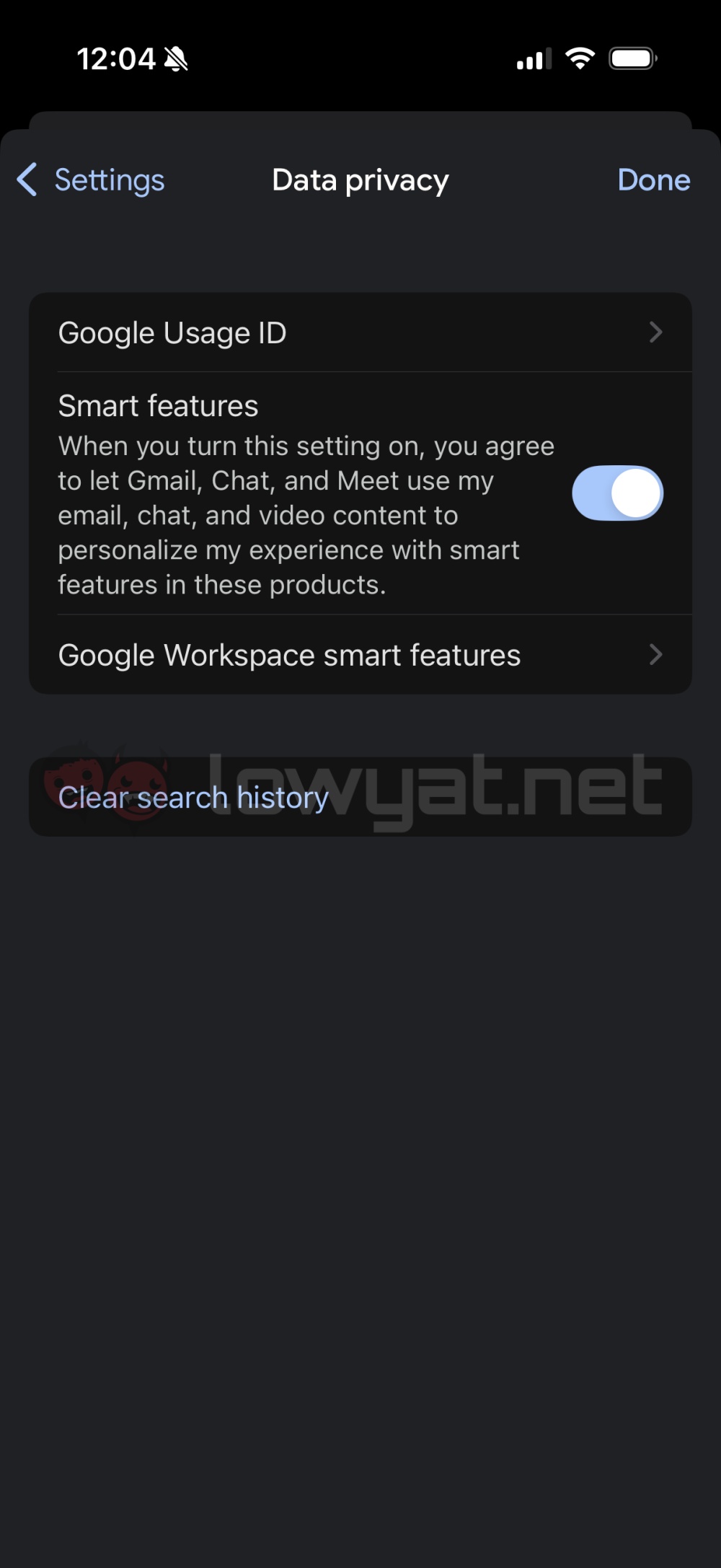
- Tap “Settings,” then scroll down and select “Data privacy.”
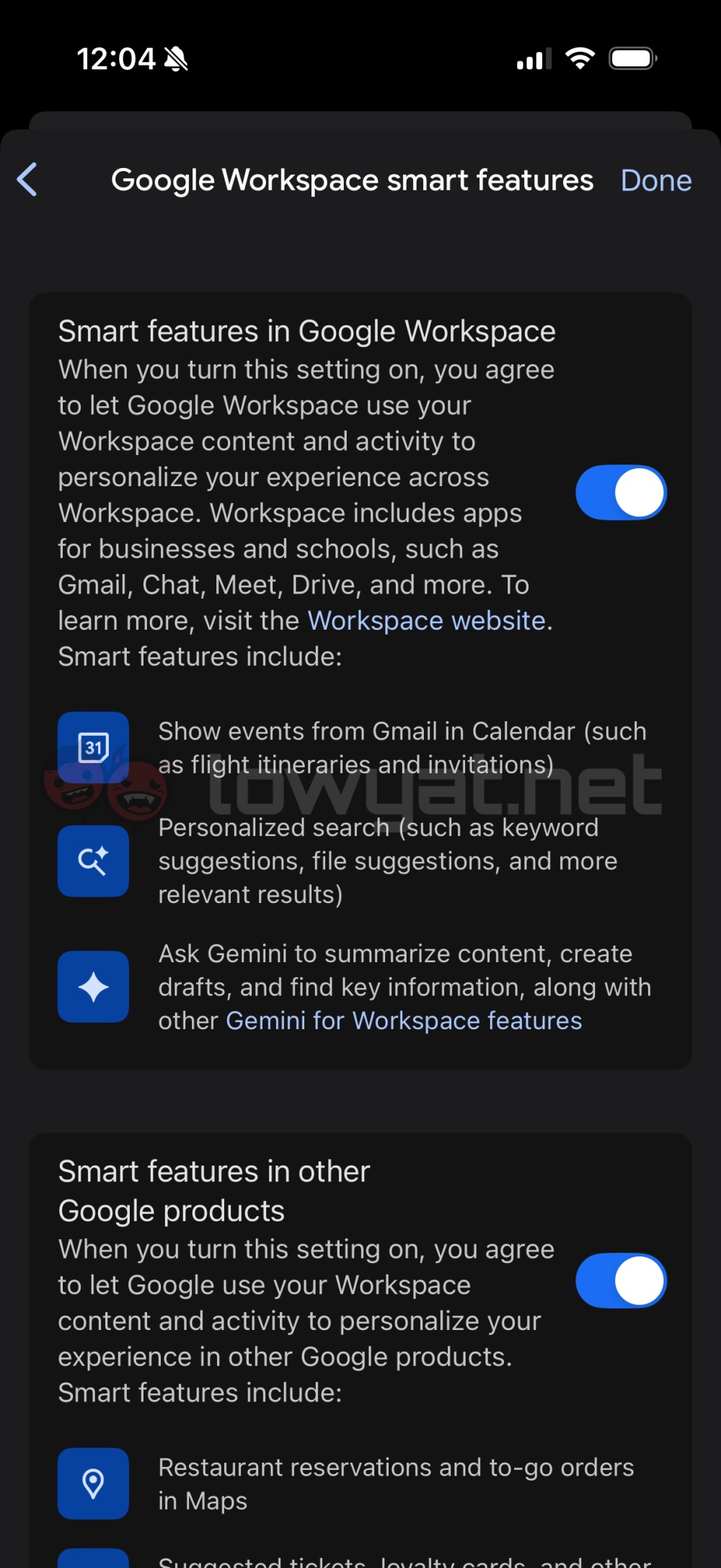
Toggle off “Smart features.” - To cut off Gemini access across Workspace, tap “Google Workspace smart features” on the same page and toggle off all available options.
(Source: Google [official blog])
